If you have ever struggled with unexpected formatting or weird line breaks in your Kindle ebooks, a plain text editor might be your new best friend.
While most authors write with word processors like Microsoft Word or Apple Pages, these programs always embed hidden code that can play havoc with your final manuscript.
A plain text editor strips away all this unnecessary background code, leaving you with a clean, raw file that is ready for formatting.
By separating the tasks of writing and formatting, you can protect your work from technical glitches and focus entirely on your story.
The Practical Benefits Of Your Plain Text Editor
Writing, or at least saving, in plain text is the most reliable way to protect your manuscripts.
Unlike proprietary file formats that can become obsolete, a standard .txt file can be read by any computer built in the last forty years, and probably by any in the next forty years.
This simplicity also makes plain text incredibly fast, launching instantly even on older hardware or with massive 100,000-word files.
Because there are no menus, ribbons, or font settings to toy with, it’s ideal for distraction-free writing.
A lot of authors prefer this minimalist way of writing because it removes any visual clutter.
It also avoids the common mistake of “formatting as you go,” which often interferes with your creative momentum when writing a first draft.
When you are ready to publish, using a clean text file as your base will help you prepare and format your ebooks and print books to suit any publishing service or platform.
You won’t have to worry about hidden XML, font-size changes, or hidden line or section breaks that occur frequently with word processor files.
Using plain text in your workflow is a simple change that can make your life easier.
It’s a basic, vanilla-flavored tool, but it is highly productive as this table shows.
| Feature | Word Processors (Word/Pages) | Plain Text (Notepad/TextEdit) |
|---|---|---|
| Code Bloat | High (Hidden XML can ruin ebooks) | Zero (Clean, raw text) |
| Speed | Slow/Heavy on large manuscripts | Instant (Low memory usage) |
| Distraction | Constant (Menus, Ribbons, Pop-ups) | Nil (Focus on words only) |
| Formatting | WYSIWYG (What you see is a mess) | Clean (Logical & Portable) |
| File Security | High Risk: Files can corrupt or become unreadable. | Total Security: .txt is universal and stable. |
Why Plain Text Outperforms Word Processors
The biggest benefit a plain text editor has over a word processor is the total absence of hidden “code bloat.”
When you write in programs like Microsoft Word, Google Docs, or Apple Pages, every change in style, font, or margins adds more and more invisible data to a file.
A plain text editor removes this risk entirely by producing a clean file that contains only your words.
The simplicity of .txt files means that your manuscript or essay will look exactly the same whether it is opened on a Mac, a PC, or even a phone.
Because these editors are incredibly lightweight, they never lag or crash, even when you are working on a massive 120,000-word epic novel.
You can avoid all the constant distractions of grammar pop-ups, spellcheck squiggles, and complex menus that can break your concentration.
A lot of writers discover that without the ability or need to play with formatting, they can write significantly faster.
It forces you to focus on the story rather than the layout, which should always be a separate stage of the process.
Even if you don’t want to use a plain text editor to write, it has many other uses. If you ever need to repair a document with messy formatting, pasting it into a plain text editor is the fastest way to reset all formatting to zero.
It’s a quick and easy cleaning process, and a vital step for self-publishing authors who want to prepare KDP or Draft2Digital uploads that are stable.
Even if you only save a copy in plain text, it protects all your hard work from proprietary file corruption or errors that can happen with Word docx or other word processor files.
Since .txt files are universal; you can move your work between different apps and devices without ever losing a single character.
By stripping away the unnecessary features of a word processor, you reclaim your focus and your productivity.
But this is only half the story, because a plain text editor can do much more than you probably think.
10 Practical Uses For A Plain Text Editor
So many tasks are easier and faster to do in a text editor.
Because it’s such a lightweight application, it opens quickly or can stay open in the background without using much memory at all.
You can choose to use either unformatted plain text (TXT) or formatted rich text (RTF) or switch between the two.
For Mac users, TextEdit is a default application, as is Notepad for Windows users.
With the recent addition of AI tools by Microsoft, Notepad++ is now a great lightweight alternative for Windows users.
However, there is more to it than just writing. A text editor can do a lot more than save your words securely. Here are ten tasks I use TextEdit for almost every day.
1. Keeping A To-Do List
I keep all my notes, issues to follow up on, and code snippets I use all the time in a TextEdit window.
It’s always open and much quicker to add or delete notes than jumping between calendars, note-taking apps, or flagged emails.
Everything I need is in one place and is much easier and faster to access.
I always add all my research notes and links when working on a new article. Then later, when the piece is published, I can quickly delete them.
It’s the most convenient way I know of to keep a to-do list.
2. Distraction-Free Writing
The fewer distractions you have for all types of writing, the better.
When you use a word processor, the menus and ribbons are full of features and functions you rarely use.
With a plain text editor, you can choose between RTF with basic formatting tools or you can use plain text with no distractions at all.
Both TextEdit and Notepad have a basic spelling and grammar checker.
But you can also use any free grammar checker if you prefer.
If all you want to do is write, what else do you need?
3. Opening TXT And RTF Files With Other Apps
Once you finish writing, you can open text editor files in almost any other writing app.
Because they are not app or system-dependent, you can open a file with a Mac, PC, or Linux.
On my Mac, there are plenty of applications that can open these files.
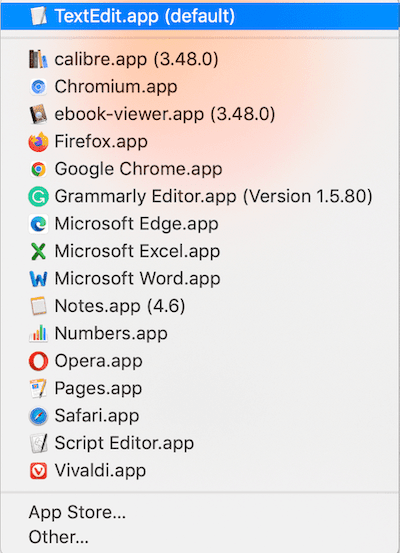
Now I can open the file in Word or Pages and perhaps add images or quickly prepare a docx file for publishing.
If I want to work in HTML, it’s easy because I don’t need to use a converter.
All I need to do is save my text file in HTML and select “Display HTML files as HTML code instead of formatted text” in my preferences.
4. Removing Background Code Before Formatting An Ebook
It should be the first thing an author does when preparing a manuscript for self-publishing.
Word processor files are full of background code that can cause errors in ebooks.
Because it takes a long time to write a book, the amount of code builds up every time you edit, open, and close the file.
Here’s what a Word document looks like in code view.
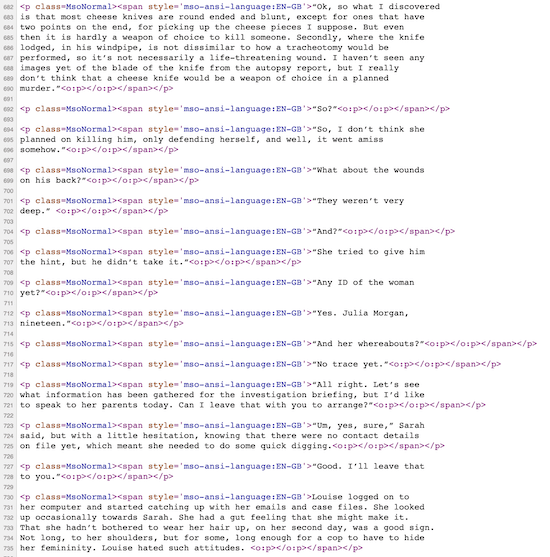 The easiest solution is to copy your entire manuscript text, then paste it into your plain text editor.
Now convert it to plain text, and it will remove all of the background code.
Then copy and paste the plain text into a new Word docx file and proceed with your book formatting.
Doing this will minimize the background code that can cause formatting problems when you publish your ebook.
5. Copy, Convert, Copy, Paste
You often copy text from other online sources when writing an article or blog post.
It might be for a quote or a reference. But if you copy and paste directly, you will add all the HTML code along with the text.
Whenever I need to copy some text, I always paste it into a text editor, convert it to plain text, and then copy and paste it into my blog editor.
Then I can be sure that the text is 100% clean.
6. Quick Transformations
I use this a lot when I’m writing an article.
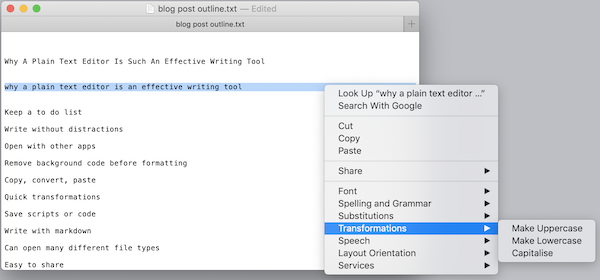
Here’s a look at the outline I prepared for this post. But I wanted to change the case of the SEO title to capitalize.
It’s a quick and easy way to change cases for titles or headings.
7. Save Scripts Or Code
If you are blogging regularly, you sometimes have to add some code or scripts to your site.
It might be for Google Analytics, Google AdSense, or a theme modification.
The best way to save them is in a small, lightweight text file. You can choose to keep them in plain or rich text.
Another use is to copy and back up your blog’s modified or custom CSS.
8. Write With Markdown
It’s not for all writers, but you can write with Markdown in a text editor.
With it, you can format text for publishing web pages or other HTML uses.
An example is for headings, which use the # symbol.
# This is an H1
## This is an H2
###### This is an H6
9. A Plain Text Editor Can Open So Many File Types
I often come across a file type I need to open that is not a standard document file.
These are commonly log, error, or data files.
But with TextEdit, I can open just about any file under the sun.
In fact, it can open nearly 100 different file types.
I always use a text file when I have to share a note, short text, or other information by email.
The file is much smaller than a Word file, and it doesn’t matter what tools the recipient uses.
Whatever they use, I know they can open my text file.
Secret tip – How To Get A Word Count In TextEdit
Can you do a word count in TextEdit?
Yes, you can, and it’s easy. Here’s how to do it.
1. Open TextEdit. Then press Command (⌘) + F to open the Find field.
2. Now, click on the magnifying glass.
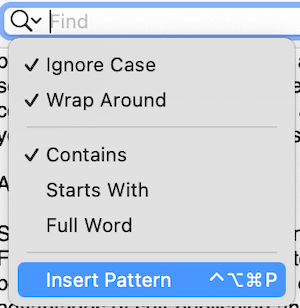
3. From the dropdown menu, click Insert Pattern
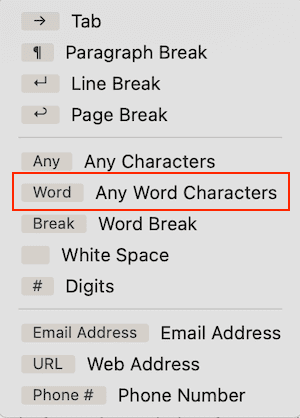
4. Select Any Word Characters.
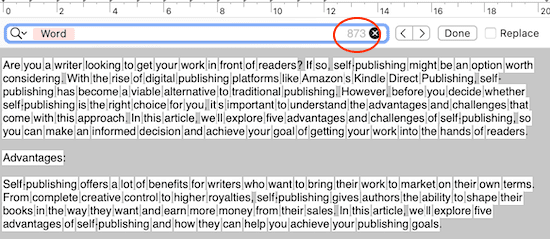
You will now see your word count in the Find box on the right.
It’s not an obvious feature like the word count display in Pages or Word.
But it works, and it’s a quick and simple trick to display your word count in TextEdit.
Summary
Yes, I have all the writing tools and apps you could possibly imagine.
But which one do I use the most?
Yes, my simple and easy-to-use plain text editor. I might use the others once a week or once a month. But I use my text editor every single day.
It’s by far the simplest yet most powerful writing tool for me.
You are more than likely using a word processor by habit.
But, with so many uses for a plain text editor, it could be worth investigating what you can do with TextEdit or Notepad.
You might be surprised to discover all the tasks you can do more quickly and easily.
Related reading: Publish A PDF Article Online For Free Without A Blog

English teacher, writer, and author. Passionate about grammar, creative writing, and self-publishing. Always exploring new tools and tech to help writers succeed.