I use Apple Pages for all my writing, but I was cautious about using Pages with Apple Intelligence.
Checking grammar, spelling, and punctuation is an important part of my workflow, but I’m usually reluctant to use AI tools for the task.
However, I was curious to see if Apple’s built-in approach, like the Apple dictionary and thesaurus, would help or hinder my writing.
Unlike many other AI tools, Apple Intelligence runs directly on your device, so it doesn’t constantly send data back and forth to remote servers. It also gives you full control, allowing you to turn it on or off entirely in your system settings.
System Requirements for Apple Intelligence in Pages
Apple Intelligence works on recent versions of macOS running on Apple Silicon (M-series) Macs.
It is also available on iPhone and iPad, but because my focus here is purely on writing, I won’t cover mobile use.
Compatible models include MacBook Air and MacBook Pro with M1, M2, M3, or M4 chips. You’ll also need macOS Sequoia 15.1 or later for Apple Intelligence to function.
The easiest way to check compatibility is in your system settings. If you can see a section for Apple Intelligence & Siri, your Mac supports it.
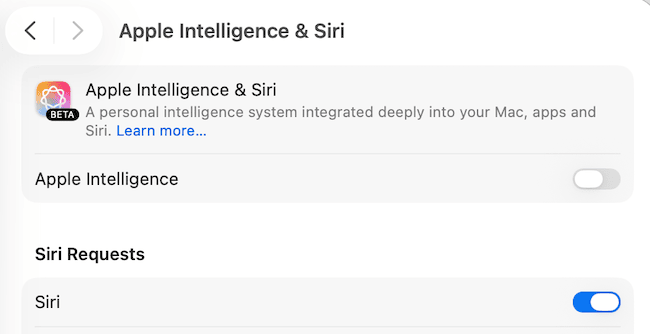
Turn it on using the toggle and wait a few minutes while the features download.
To confirm it’s running, open a Pages document, highlight some text, and right-click. You should see new options appear in the contextual menu.
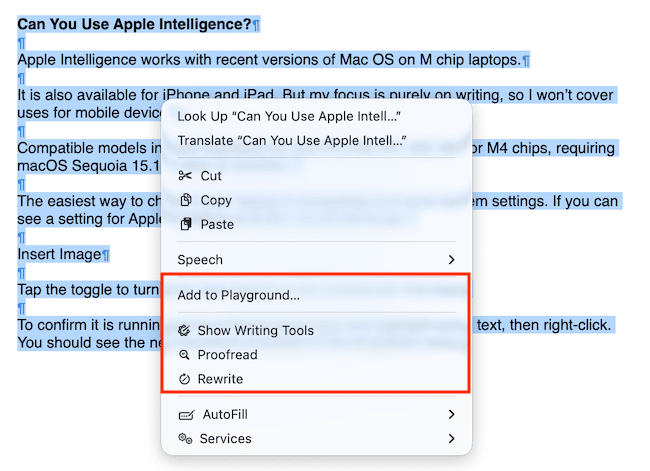
Selecting Writing Tools reveals options such as changing tone or style, creating a list, generating a table, or producing a summary. The Add to Playground option relates to image creation and isn’t relevant for writing tasks.
That leads to the obvious question: how does Apple Intelligence compare to dedicated writing and grammar checkers, and can it realistically replace something you’re already using?
Can It Replace My Existing Grammar Checkers?
For my use, it would be practical if it could replace the apps that I use to check the basics.
I’m not a lover of AI apps that change my tone, style, or vocabulary choices.
All I need is an accurate check of my grammar, spelling, punctuation, and to catch any stray typos.
Another consideration is practicality. Is it quick and easy to use, and am I in control?
The last thing I want is for a tool to make changes that I haven’t approved.
Can Apple give me all of these in its minimalist proofreading toolbar?
Yes, I can see the error count, toggle through the errors, and revert changes individually or completely.
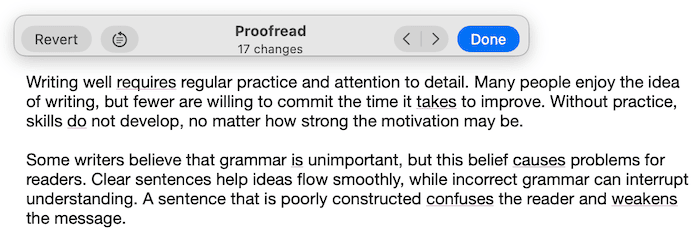
So far, so good. But what about the accuracy of the results?
To get an idea of how well Apple Intelligence works with Apple Pages, I compared the results with three popular grammar checkers.
For my test, I used three texts, which included errors, and ran them through ProWritingAid, LanguageTool, Grammarly, and, of course, Apple Pages with Apple Intelligence.
In my first two tests, the errors included borderline grammar-versus-usage issues, context-dependent phrasing, and standard punctuation, grammar, and spelling mistakes.
In the last test, the errors were only 100% obvious mistakes.
The results were surprising because they highlighted how AI tools work in a similar way, depending on the text.
The Pattern Across All Three Tests
What was obvious is that grammar tools are not necessarily inconsistent, but are often adaptive.
When analyzing a subtle text, they are often conservative, but when there are clear errors, they are much more assertive.
Results: What the Grammar Checkers Found
Test One: 500 words, 15 complex errors
- LanguageTool: Found 5 errors
- ProWritingAid: Found 8 errors
- Grammarly: Found 8 errors
- Apple Intelligence: Found 6 errors (but found 9 when checking paragraph by paragraph)
Test Two: 300 words, 10 complex errors
- LanguageTool: Found 6 errors
- ProWritingAid: Found 7 errors
- Grammarly: Found 7 errors
- Apple Intelligence: Found 6 errors
Test Three: 250 words, 10 clear errors
- LanguageTool: Found 10 errors
- ProWritingAid: Found 17 errors
- Grammarly: Found 18 errors
- Apple Intelligence: Highlighted 17 errors
My results confirm that grammar checkers as a whole don’t catch everything.
When errors are clear and rule-based, all tools perform well.
But when language becomes more complex, the responsibility is on the writer.
Apple Intelligence follows a similar pattern, but seems to adjust its strictness depending on how and where it is used.
In my first test, Apple found six errors when I checked the full text, but found nine when checking paragraph by paragraph.
My last test was an eye-opener. It seems that when grammar mistakes are subtle, these tools all hesitate.
But when errors are obvious, all the tools become more assertive, and Apple Intelligence is no exception.
The Verdict: Can Apple Intelligence Replace Your Grammar Checker?
My tests took a lot longer than I had planned.
Although my main aim was to see if Apple Intelligence with Apple Pages was a possible alternative, it proved that relying on one grammar checker alone is never enough.
But yes, it works, and it performed about the same as other writing correction tools, but surprisingly, it was a lot slower when checking over 1,000 words.
This is perhaps because Apple Intelligence prioritizes on-device processing to keep your data private.
Apple can scale up to its Private Cloud Compute (PCC) servers for more complex tasks, but the system always tries to handle proofreading locally on your Mac’s M-series chip first.
For longer, complex texts, this on-device heavy lifting can feel a bit sluggish compared to the lightning-fast, cloud-based engines used by competitors like Grammarly.
The only other small gripe I have is that although I can toggle through errors and select ones I don’t want to apply, it is a bit all or nothing.
When I choose the proofread option, it automatically makes changes, so I have to “undo” the corrections I don’t believe are correct.
Most other tools offer a list of errors that I can check one by one and apply if I wish. Is it a deal-breaker? Perhaps.
The one big missing piece is a simple, on-the-fly option to toggle between US and UK English.
To switch, you have to dig into your Mac’s System Settings > General > Language & Region to change your preferred language order.
It’s a clunky process that may even require a restart to apply across all your apps. If you’re a writer who moves between international clients, this is a significant downside.
Conclusion
I intentionally limited my assessment to the proofreading tool because I have no need or want to use AI rewriting and rephrasing tools.
These might be more important for some writers, and if so, they work the same as with many other writing tools.
However, this was an interesting exercise because it highlighted how similar AI correction tools are.
When confronted with errors that break strict grammar rules and obvious spelling mistakes, they all work very well. But they are not so good with style and readability.
So, will I use Apple Intelligence with my Pages word processor?
I’m a lover of most things Apple, but to be perfectly honest, I think I’ll pass on this one.
Why? It’s slow on long texts, it makes changes before I apply them, and I can’t easily change language settings.
It’s a good backup solution if I ever need it, but it will need to offer more options in the future for me to consider using it in my long-form writing workflow.
However, I just might keep it enabled for quick checks with email and messages.
Key Takeaways: Apple Intelligence vs. The Rest
- Best For: Quick proofreading and total privacy (on-device processing).
- The Downside: Noticeable slowdown on documents over 1,000 words.
- Control: Need to “unapprove” automatic changes to a text.
- Privacy: Superior as it runs locally via Apple Silicon and Private Cloud Compute.
- Language Support: Clunky; requires changing macOS system settings to switch locales.
Related Reading: Why AI Gets Grammar Wrong But Sounds Almost Right

English teacher, writer, and author. Passionate about grammar, creative writing, and self-publishing. Always exploring new tools and tech to help writers succeed.